
As we know, the default GCC version installed via yum on CentOS varies by release: CentOS 5 uses 4.1.2; CentOS 6 uses 4.4.7; CentOS
7 uses 4.8.3.
In many cases, compiling and installing software requires a newer version of GCC; otherwise, errors will occur.
So how do you upgrade the GCC version?
First, you need to decide which GCC version to upgrade to.
At present, the latest GCC version has reached 5.2, while CentOS 7 still uses
4.8, so for compatibility reasons, I chose to upgrade to 4.8.5.
GCC official website: https://gcc.gnu.org
Next, let’s compile and install GCC
4.8.5 step by step. Note that before compiling and installing GCC, you must first install an older version of GCC and the required dependency libraries on the system via
yum.
If you are compiling on an x86_64 system, you also need to install libgcc.i686
and glibc-devel.i686.
yum install -y gcc texinfo-tex flex zip libgcc.i686 glibc-devel.i686
Of course, if you are installing on a CentOS 5 x86_64 system, use the following command:
yum install -y gcc texinfo-tex flex zip libgcc.i386 glibc-devel.i386
Also note that compiling and installing GCC requires at least 1GB of memory, at least
1GB of swap, and a minimum of 10GB of disk space; otherwise, it is very likely to fail and exit midway.
After compilation and installation are complete, the gcc-4.8.5 directory will take up as much as 5GB.
1. Download the source code
wget ftp://ftp.gnu.org/gnu/gcc/gcc-4.8.5/gcc-4.8.5.tar.gz
2. Download the dependency packages
Compiling and installing GCC requires the mpc, mpfr, and gmp packages. Fortunately, the GCC
source code includes a script that can easily download these dependency packages.
tar zxf gcc-4.8.5.tar.gz
cd gcc-4.8.5
./contrib/download_prerequisites
In this script, you can see that the dependency package versions are
mpc-0.8.1, mpfr-2.4.2, and gmp-4.3.2.
3. Compile and install
mkdir gcc-build-4.8.5
cd gcc-build-4.8.5
../configure --prefix=/usr
make && make install
To avoid having multiple versions of
GCC on the system after installation, the installation directory for the compiled version is set directly to /usr here. If you do not specify
–prefix, it will be installed to /usr/local by default.
GCC 4.8.5
source code alone is 105MB, so it is easy to see that the entire compilation process will take a long time (roughly
about 2 hours).
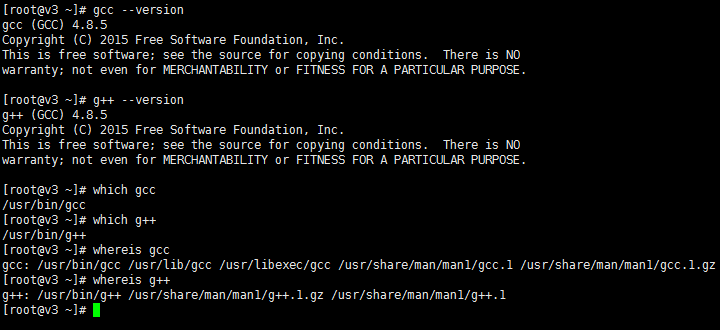
4. Check the version number
gcc --version
gcc (GCC) 4.8.5

g++ --version
g++ (GCC) 4.8.5

which gcc
/usr/bin/gcc

which g++
/usr/bin/g++
Note: This installation was successful on CentOS 6.7 x86_64.
5. Test program
cd ~
Create a main.cpp file with the following content:
    #include <iostream>
    using namespace std;
    int main() {
        cout << "Hello world!" << endl;
        return 0;
    }
Compile main.cpp by running the following command:
g++ main.cpp -o main
Run the generated file:
./main
The output is as follows:
Hello world!
Final notes
Use the rpm command to check the installation status of the GCC packages:
rpm -qa | grep gcc
The output is as follows:
gcc-4.4.7-16.el6.x86_64
libgcc-4.4.7-16.el6.x86_64
libgcc-4.4.7-16.el6.i686
gcc-c++-4.4.7-16.el6.x86_64
Therefore, after compiling and installing GCC through the above steps, be cautious when using yum update or commands that use
yum to upgrade GCC.